Worked example. Every person, business, address, phone number and reference on this page is invented, and 1 Example Street does not exist. The phone screens are DoorID’s real screens, captured with these invented details.

One application, end to end

One check, from Send to the report in the file.

Every step below is a step the product has today, in the order it happens, with what the customer, the broker and the lender each see at that moment. Nothing here is a plan.

The customer

Sam Sampleton

1 Example Street, Exampletown, ZZ1 1ZZ
07700 900123

The broker

Example Brokers

Takes the application and holds the DoorID account. Reference EX-0001.

The lender

Example Lender

Receives the application from the broker, with the DoorID report attached.

A house, with the licence captured in the flow: the broker’s Property + ID check. A flat has its own captures, and a broker can also send an address-only check or a licence-only check; those are not walked here.

  1. Step 1. The application comes in.

    Sam applies for finance on a car through Example Brokers and gives a name, an address and a phone number. The broker has not submitted anything to a lender.

    Customer sees
    • Has given Example Brokers their details. Nothing to do yet.
    Broker sees
    • Has an application for Sam Sampleton at 1 Example Street, not yet submitted.
    Lender sees
    • Nothing yet.
  2. Step 2. The broker sends the check.

    In the DoorID portal the broker opens Create Verification, chooses Property + ID, and fills in Sam’s first name, last name, phone number, the address and a reference. The Send button says what this check will cost before it is pressed.

    Customer sees
    • Nothing yet.
    Broker sees
    • Create Verification: Property + ID (home visit with driving licence and selfie).
    • First name Sam, last name Sampleton, phone 07700 900123, address 1 Example Street, Exampletown, ZZ1 1ZZ, reference EX-0001.
    • Under the Send button: what this check costs, and how many free checks are left.
    Lender sees
    • Nothing yet.
  3. Step 3. The link exists, and the text goes out.

    The portal shows the link, a QR code, the check’s ID and the date the link expires, and the delivery status of the text as it changes from queued to sent to delivered. The check appears in the broker’s list of checks.

    Customer sees
    • A text arrives on Sam’s phone:
    • Hi Sam, DoorID needs you to confirm you're at your address. Start here: doorid.ai/v/example (doorid.ai)
    Broker sees
    • The link and a QR code, the check ID and its expiry date, and the text’s delivery status.
    • On the check’s page, the timeline reads Link created, then Text sent.
    • Send text again and Copy link are there if the text does not arrive.
    Lender sees
    • Nothing yet.
  4. Step 4. Sam opens the link, at the address.

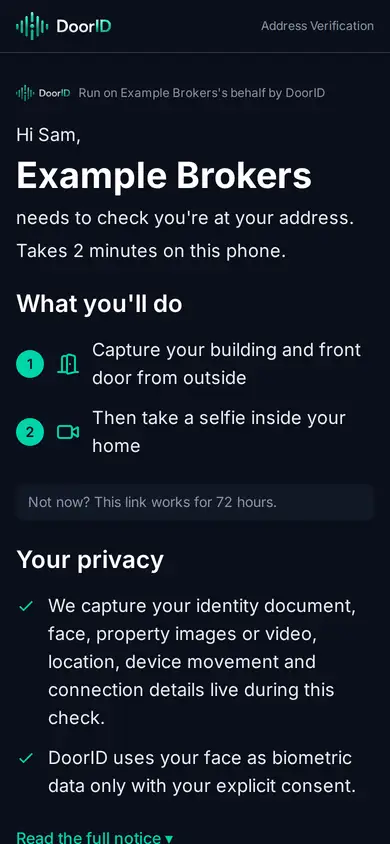
    The first screen is headed with the broker’s name and says it needs to check Sam is at their address. It lists the two things Sam will do, states plainly what is captured and that face data is used only with explicit consent, and asks for that consent with a tick box before anything else happens.
    Customer sees
    • Example Brokers, run on its behalf by DoorID, needs to check you’re at your address.
    • What you’ll do: capture your building and front door from outside, then take a selfie inside your home.
    • Your privacy: what is captured live during the check, and that your face is used as biometric data only with your explicit consent. The full notice opens on the same screen.
    • Tick the box, then I agree and continue. Or Decline, which ends the check.
    Broker sees
    • The timeline moves to Opened.
    • If Sam declines, the check ends there and the broker sees that it did.
    Lender sees
    • Nothing yet.
    The first DoorID screen on the customer's phone: the broker's name, what the customer will do, the privacy points and the consent tick box above I agree and continue.
  5. Step 5. A code by text, then permissions.

    When the broker’s account has it switched on, Sam is asked for a six-digit code sent by text to the same phone. Then the browser asks for permission to use location, and on an iPhone, motion. A refusal shows a screen explaining what to switch on and where.

    Customer sees
    • Enter your code: the six digits from the text.
    • The browser’s own permission prompts for location and, on an iPhone, motion.
    • If either is refused: a screen explaining what to switch on, and a way back into the check once it is.
    Broker sees
    • Nothing new. The check is open.
    Lender sees
    • Nothing yet.
  6. Step 6. The driving licence.

    Sam positions the licence inside the guide on screen. The details are read from the card and shown back for Sam to check: licence number, names, date of birth, address and expiry. Sam can retake the photo or confirm.

    Customer sees
    • Position your UK driving licence inside the guide.
    • Check the details we read: licence number, first names, last name, date of birth, address, expiry. Retake, or Confirm.
    • Step 1 complete: the licence has been received. If a detail does not match what the broker entered, the screen says which one, that it will be reviewed, and that Sam can still continue.
    • Continue to Step 2.
    Broker sees
    • The timeline moves to In progress.
    Lender sees
    • Nothing yet.
  7. Step 7. What type of property?

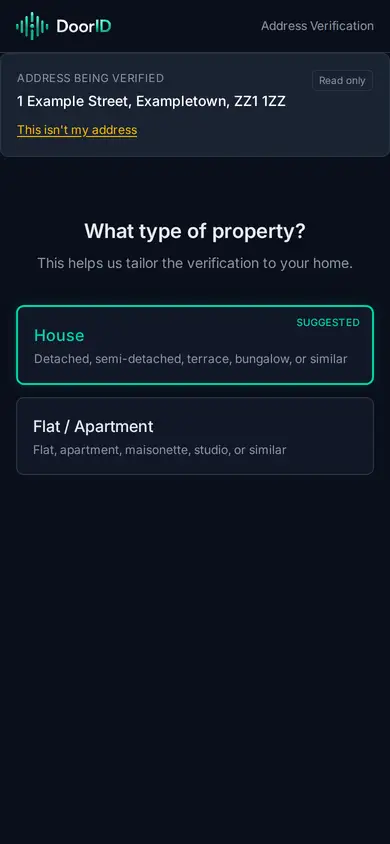
    Sam is shown the address being verified, read-only, with a way to say it is the wrong address, and picks the type of property: House, Rural property, or Flat / Apartment. 1 Example Street is a house, so the check runs the three house captures.
    Customer sees
    • Address being verified: 1 Example Street, Exampletown, ZZ1 1ZZ. Read only, with a This isn’t my address link if it is.
    • What type of property? Sam picks House.
    Broker sees
    • Nothing new. The check is in progress.
    Lender sees
    • Nothing yet.
    The property-type screen: the address being verified shown read-only, and the choice of House, Rural property or Flat / Apartment.
  8. Step 8. Capture one: the building.

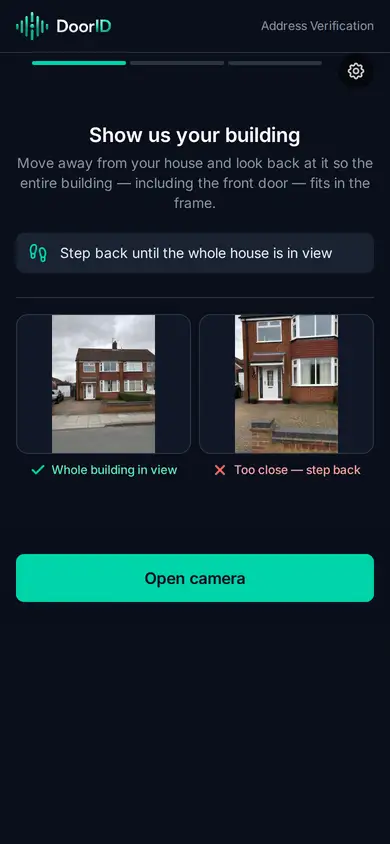
    A coaching screen shows Sam what to do before the camera opens: step back until the whole house is in view, turn the phone sideways, hold steady and follow the arrows. After the capture Sam sees what was recorded and chooses Looks right or Retake.
    Customer sees
    • Show us your building: step back until the whole house is in view, rotate the phone sideways, hold steady and follow the arrows.
    • Then a review of what was captured: Looks right, or Retake.
    Broker sees
    • Nothing new.
    Lender sees
    • Nothing yet.
    The coaching screen before the first capture: Show us your building, with the three instructions and a reference example of a good capture.
  9. Step 9. Capture two: the open front door.

    Sam opens the front door fully before filming and frames the open doorway head-on, including the house number. Sam does not need to be in the shot. The same review follows.

    Customer sees
    • Open your front door: open it fully before you start, frame the whole open doorway head-on, hold steady.
    • Looks right, or Retake.
    Broker sees
    • Nothing new.
    Lender sees
    • Nothing yet.
  10. Step 10. Capture three: a selfie inside the home.

    Standing fully inside, not on the doorstep, Sam faces the camera so the selfie can be compared with the licence. The door does not need to be in shot. The same review follows, and the captures upload.

    Customer sees
    • Selfie inside your home: stand fully inside, face the camera so it can be matched against your driving licence.
    • Looks right, or Retake. Then the captures upload.
    Broker sees
    • Nothing new.
    Lender sees
    • Nothing yet.
  11. Step 11. Processing, then thank you.

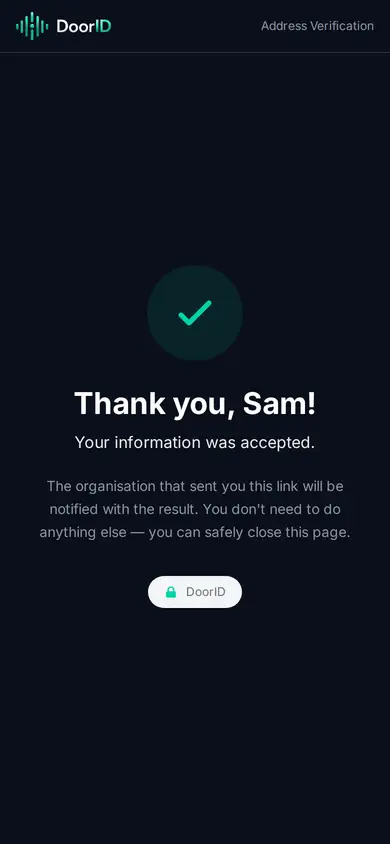
    Sam sees that the photos and information are being checked, then a thank-you screen. Whether that screen says the information was accepted, or only that it has been sent, is the broker’s own account setting. Either way Sam is told the organisation that sent the link will be notified, and can close the page.
    Customer sees
    • Processing: your photos and information are being checked.
    • Thank you, Sam! Then one of two lines, depending on the broker’s setting: that the information was accepted, or that it has been sent.
    • The organisation that sent you this link will be notified with the result. You don’t need to do anything else. You can safely close this page.
    Broker sees
    • The timeline moves to Completed, and then to Result.
    Lender sees
    • Nothing yet.
    The final screen on the customer's phone: Thank you, Sam, with the line that the organisation that sent the link will be notified with the result.
  12. Step 12. The result reaches the broker.

    The check’s page in the portal shows Pass, Refer or Fail with the reasons. A Refer is marked Needs your review, with what was found, and the broker’s team decides. The report is there to view and download, with the date it stays available until, and the images are on their own tab. An email arrives with the PDF attached and a secure download link.

    Customer sees
    • Nothing more, unless the broker gets in touch.
    Broker sees
    • Result: Pass, Refer or Fail, with the reasons in plain words. A Refer says Needs your review.
    • Report: View report, Download report, and the date it is available until. Images on their own tab.
    • An email, subject Evidence pack — ref EX-0001, with the PDF attached and a secure link.
    • If the check was given a callback URL, a signed webhook carrying the same result.
    • Your report stays available in DoorID for 7 days after the check finishes. Download and keep it — your copy is the record.
    Lender sees
    • Nothing yet.
  13. Step 13. The broker submits, with the report attached.

    Example Brokers sends Sam’s application to Example Lender with the DoorID report in the file. The lender reads it there. A lender that runs checks on its own DoorID account takes the same result over the API instead: a signed webhook, and the evidence pack in one request.

    Customer sees
    • Nothing more.
    Broker sees
    • Attaches the PDF to the application. Keeps its own copy.
    Lender sees
    • Page one of the report: the result and the reasons; the declared address; the driving licence beside the verification selfie, with the comparison score; the customer’s capture beside a Street View reference; the opened front door; the date and time.
    • A result about physical access to the address, not a lending decision. The decision on the application is the lender’s.
    • On its own account, over the API: a signed webhook when the check completes, and the evidence pack as a PDF from the evidence endpoint.
What this example shows

Three people, one fact.

The customer did the check at the address. The broker got the result before submitting. The lender got the report with the application. Presence is proof.

Brokers: the broker page has the pricing and the sign-up sequence.